How to use this site

Works in any browser on a phone, tablet or computer. Nothing to install.

  1. Home page has everything in sections: 3D Model, As-Built Inventory, Warranties, Subcontractors, Maintenance, Drawings, Conflicts, Open Questions, Downloads. Use the dark bar at the top to jump.
  2. Yellow tags ASSUMED and TO BE FIELD VERIFIED mean the item is not confirmed. Check it on site and tell GT Investments.
  3. Inventory filter: type a word (door, roof, ASSUMED) in the box above the inventory table to narrow the list.
  4. Downloads: the O&M packet PDF to print, and the inventory as Excel or CSV.

The 3D viewer
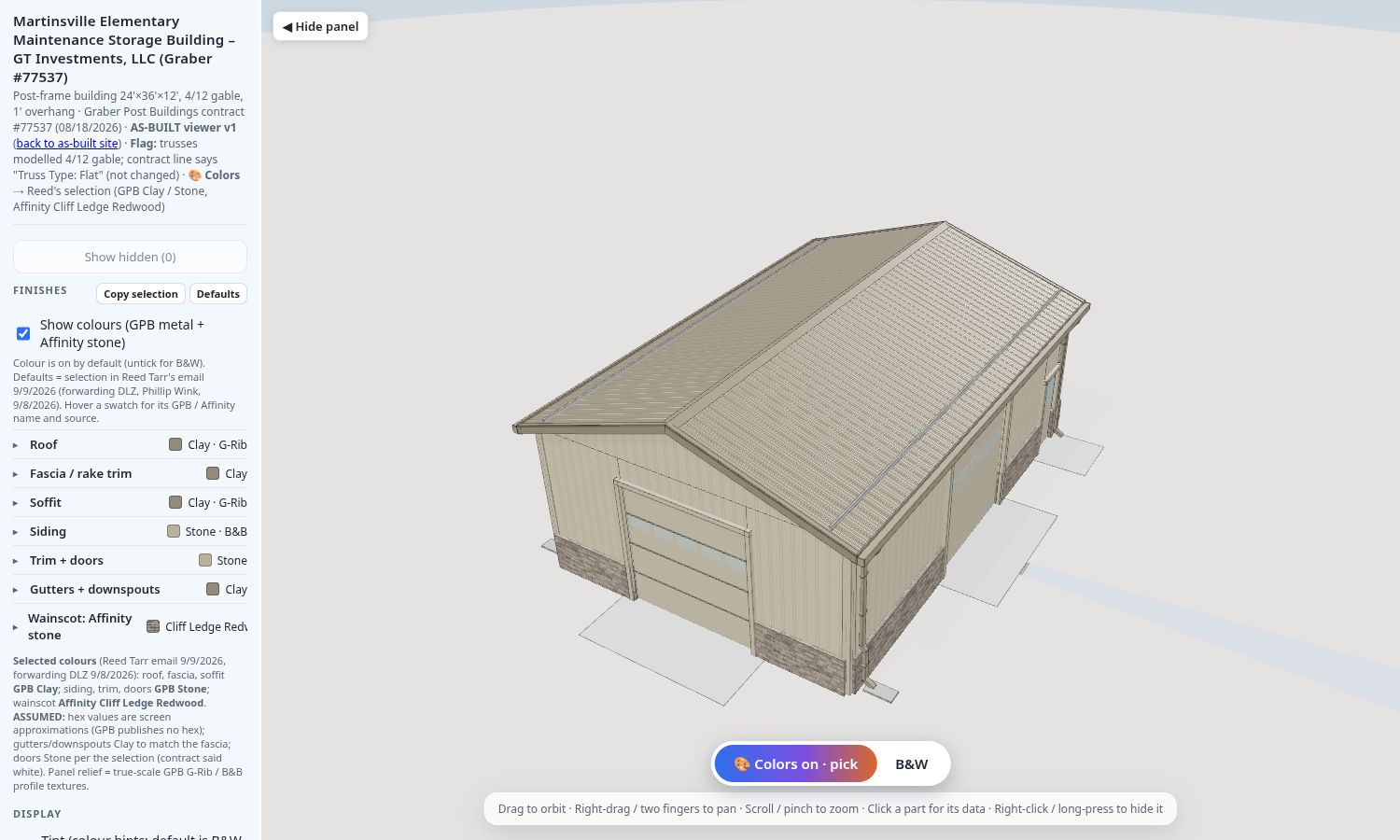
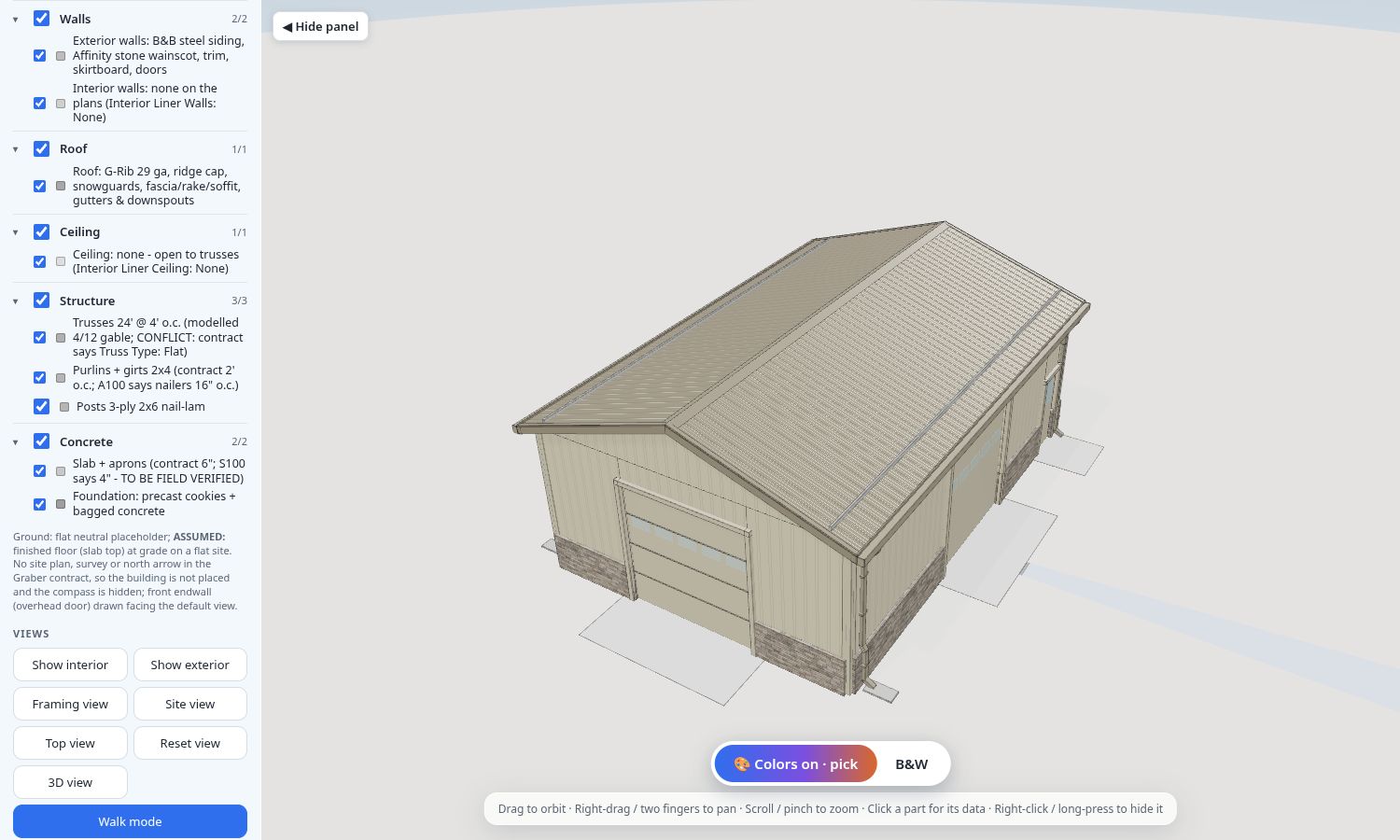
1. Open the viewer. Drag to orbit, right-drag or two fingers to pan, scroll or pinch to zoom. Click a part to see what it is and its source.
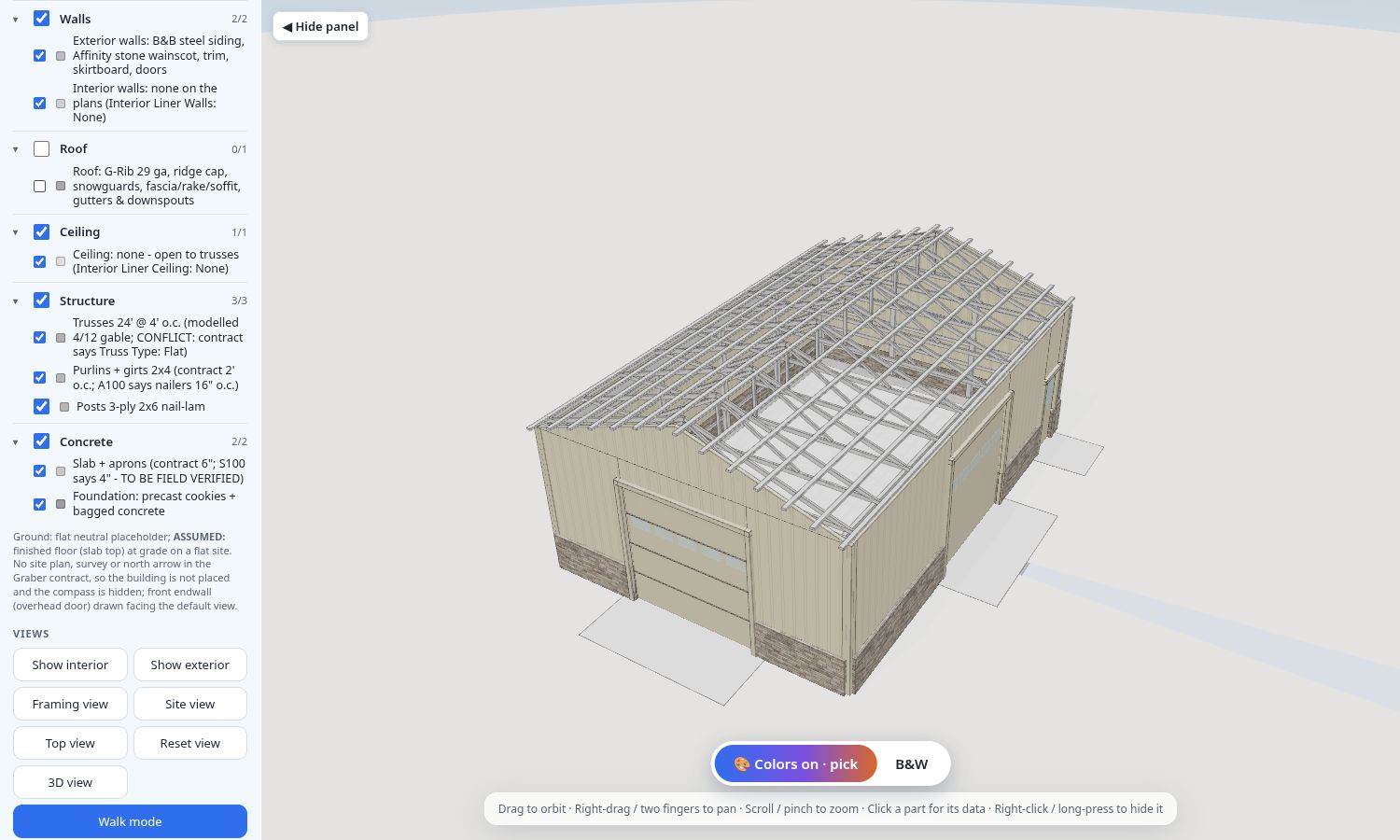
2. Left panel layers: Walls (Exterior / Interior), one Roof toggle, one Ceiling toggle, then Structure and Concrete. Untick a box to hide that layer. Interior walls and ceiling are empty: there are none on the plans.
3. Untick Roof to look inside at the trusses.
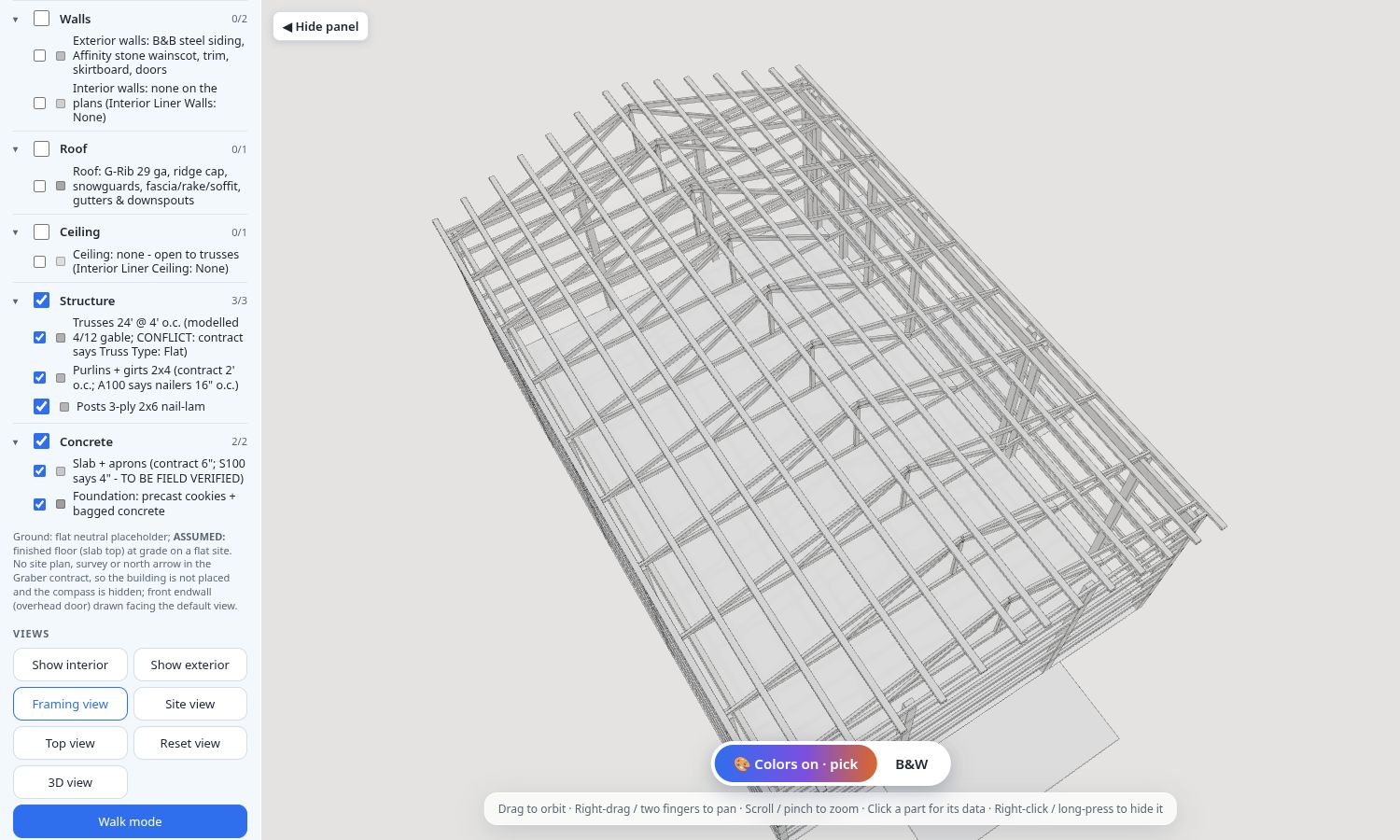
4. Framing view button shows only posts, girts, purlins and trusses. Trusses are drawn 4/12; the contract also says "Truss Type: Flat" (flagged).
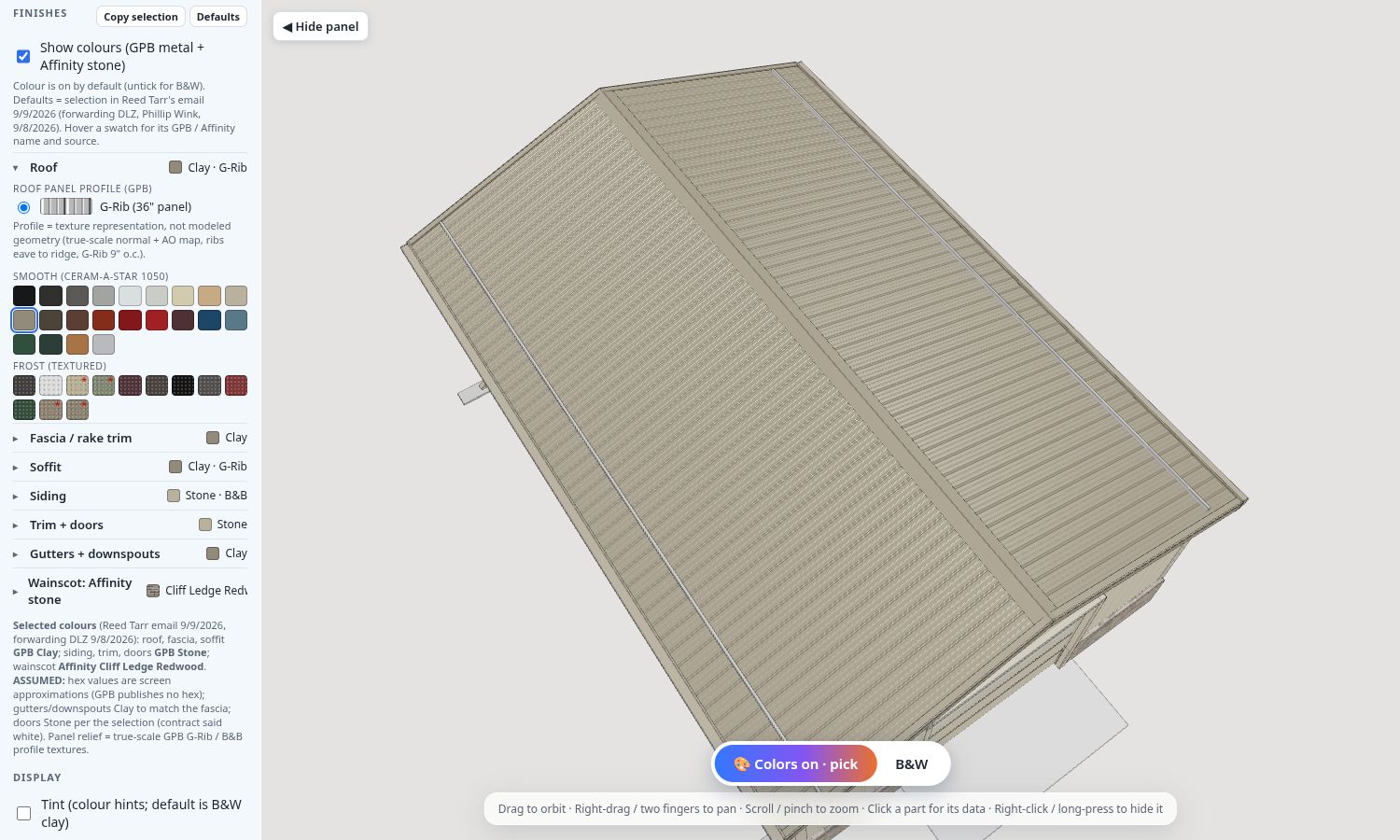
5. Colors button shows the selected GPB metal colors and Affinity stone. On-screen colors are approximate (ASSUMED). B&W goes back to plain grey.

Tip: on a phone, tap ☰ Menu to open the panel, and use ◀ Hide panel to give the model the whole screen. Right-click or long-press a part to hide just that part; Show hidden brings it back.

Open the as-built viewerOpen the existing renderings viewer